


We’re employee-owned, every team member you work with brings the mindset of a business owner.

Alan Coleman, CEO


Wolfgang Digital is an equal opportunity employer committed to fostering an inclusive workplace


Wolfgang Digital is an equal opportunity employer committed to fostering an inclusive workplace

In 2020 Google began to allow free (organic) clicks from merchant center feeds for e-commerce sites from platforms such as Google shopping and Google search. When it was launched, it was only available in 3 regions; United States, India & Indonesia. Towards the end of 2020 they expanded this to over 90 countries including Ireland. This is great news as it means a free extra source of traffic for your website. The only drawback is that the traffic would be attributed in Google Analytics under source/medium as google/organic. This meant you couldn’t see how many clicks are coming in through this particular traffic source and what their behaviour is like.
However, you can make some edits to your feed within the merchant center, which will allow you to view this traffic easily within Google Analytics.
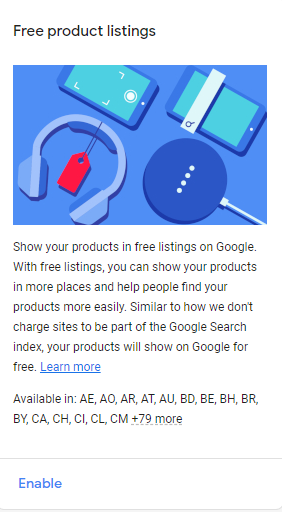
1. Firstly, we need to enable this feature. Log into your merchant center, go to growth > Manage Programs > Free Product Listings and select enable. This option is available to merchants who don’t run shopping ads but have a feed and have provided the necessary information to set up the merchant center.
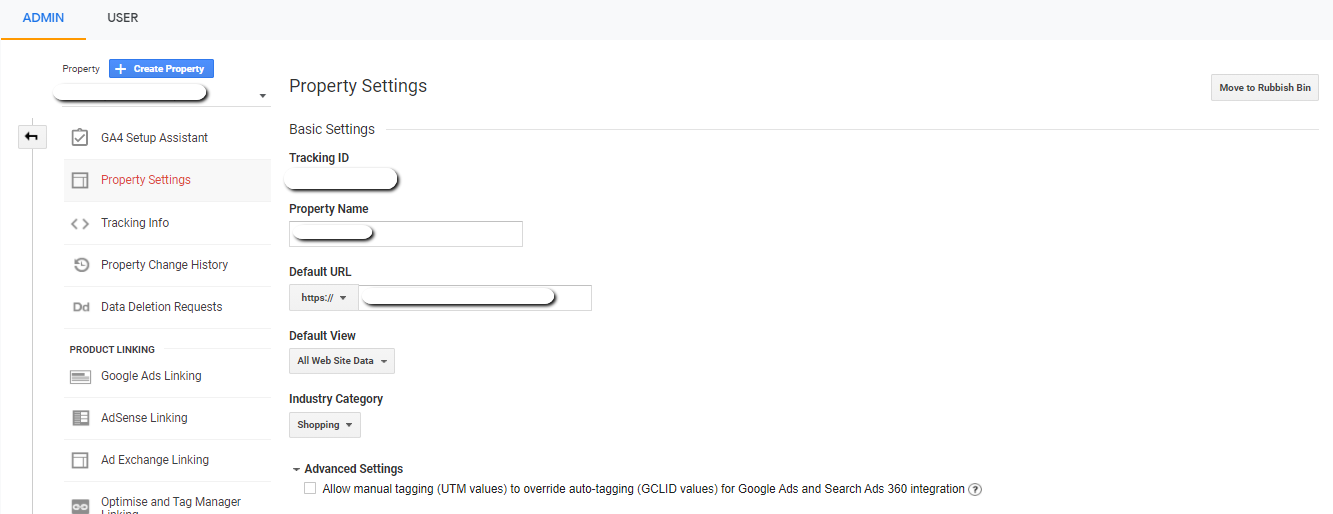
2. Before making any adjustments to the feed you will need to log into your Google Analytics account and go the admin section. Go the property settings and under advanced settings ensure that the checkbox to allow manual tagging (UTM Values) to override auto tagging (GCLID values) for Google Ads is unchecked.
If this box is checked the manual tag will override the auto tagging and you will lose tracking on your Google Shopping campaigns.
3. We now need to build our UTM to append to our feed. You can use this Google tool to build out your UTM: https://ga-dev-tools.appspot.com/campaign-url-builder/ We used the fields campaign source (google-shopping), Campaign medium (organic) and Campaign name (ie). Here is an example URL:
This setup will mean this traffic filters into the organic line in the channel report but is easily identifiable in the source/medium report and if you have different feeds for different countries the campaign name will allow you to see which feed is driving these clicks, in this case Ireland.
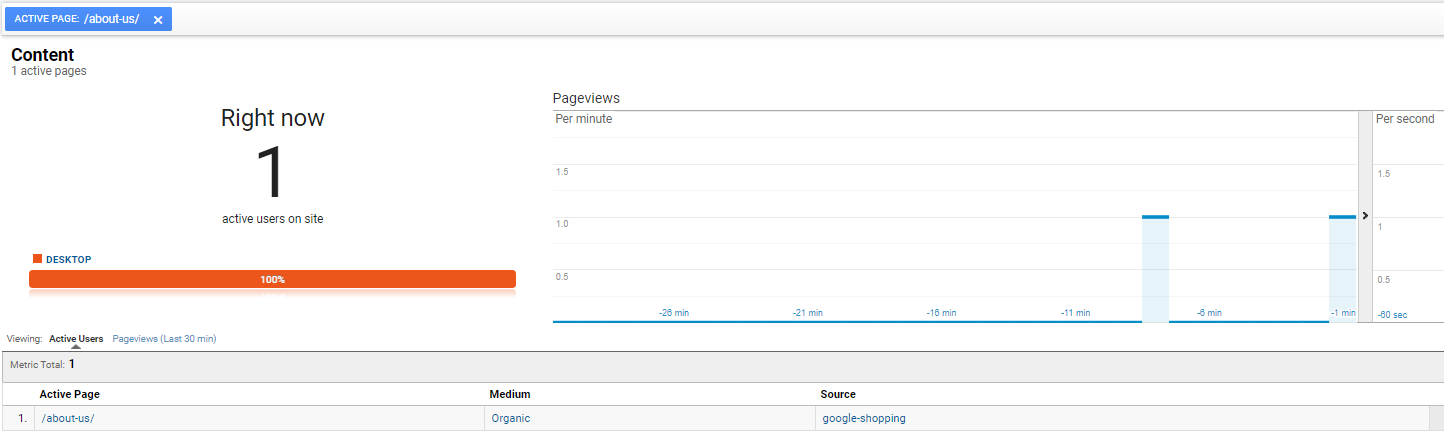
It is worth clicking on your test URL to ensure you land on the page as expected and then going to the real time section within your analytics account to ensure the source / medium are appearing as planned.
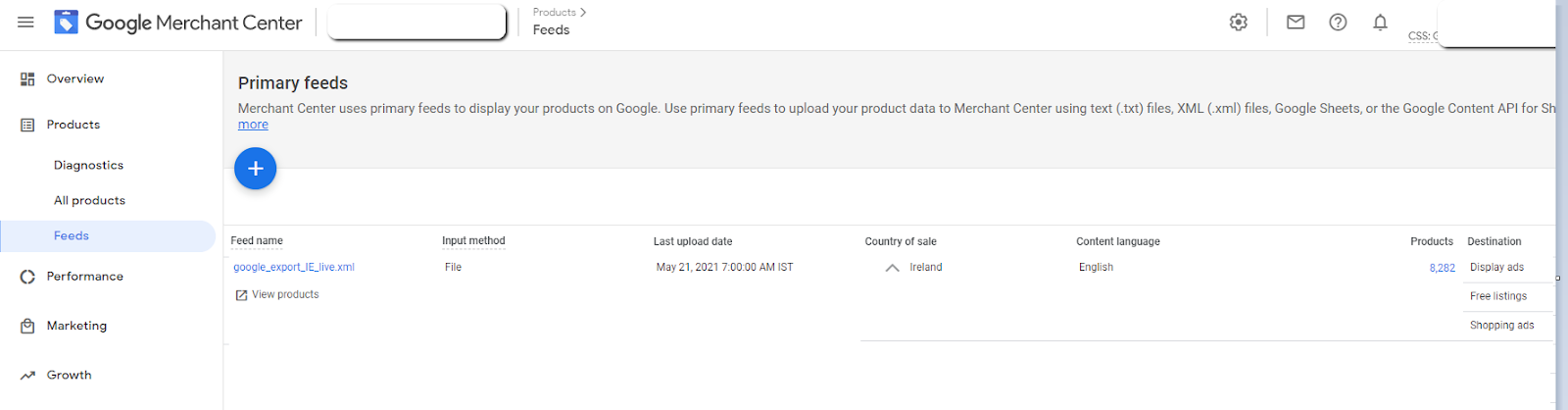
4. Now log back into your merchant center and go to products > feeds > and click on the feed name which is a blue hyperlink.
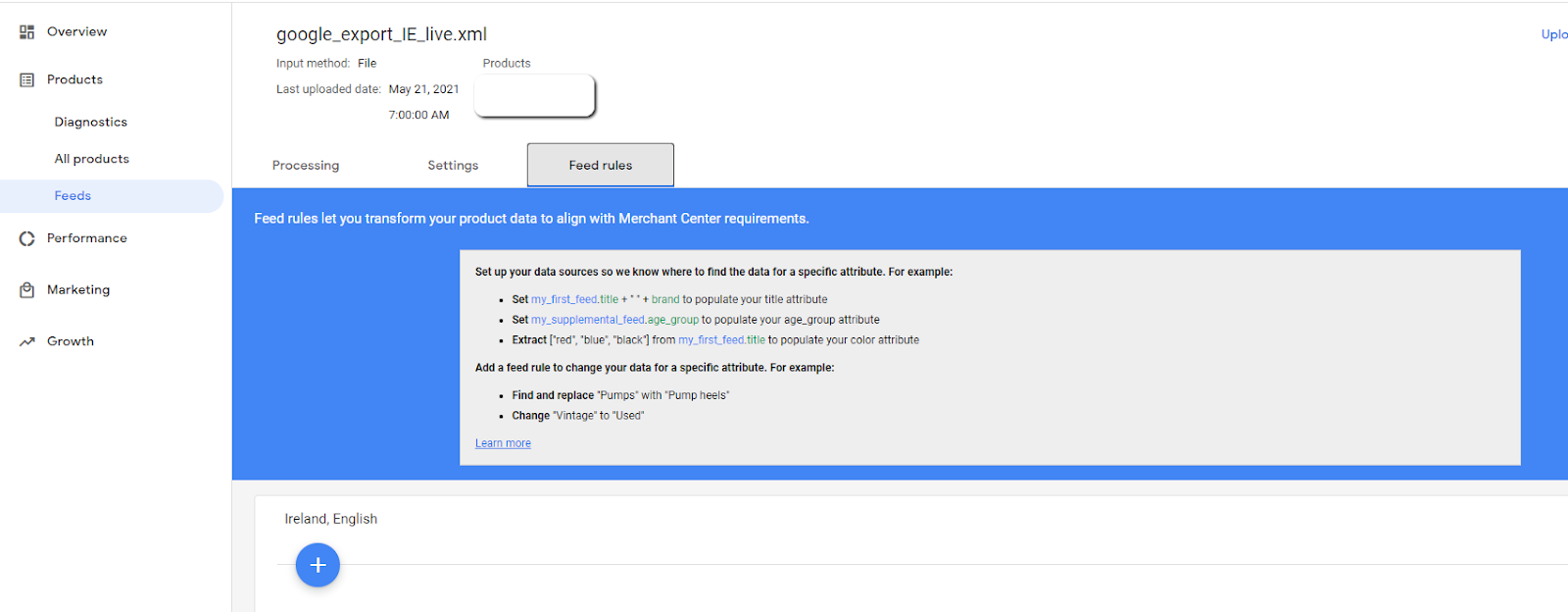
5. Then select feed rules, which shows some examples of feed rules. Click on the blue + below these examples.
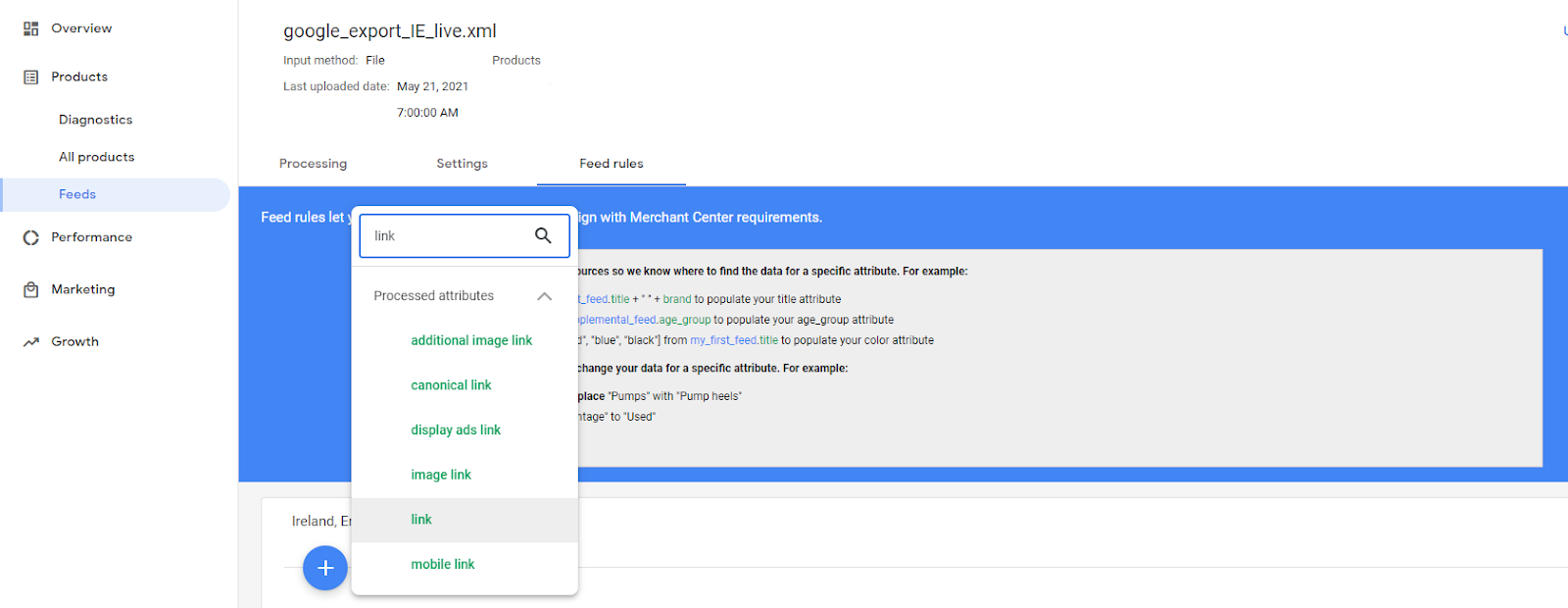
6. This will then open a search bar where you need to type link (and then select it) as there are many things that we can edit here.
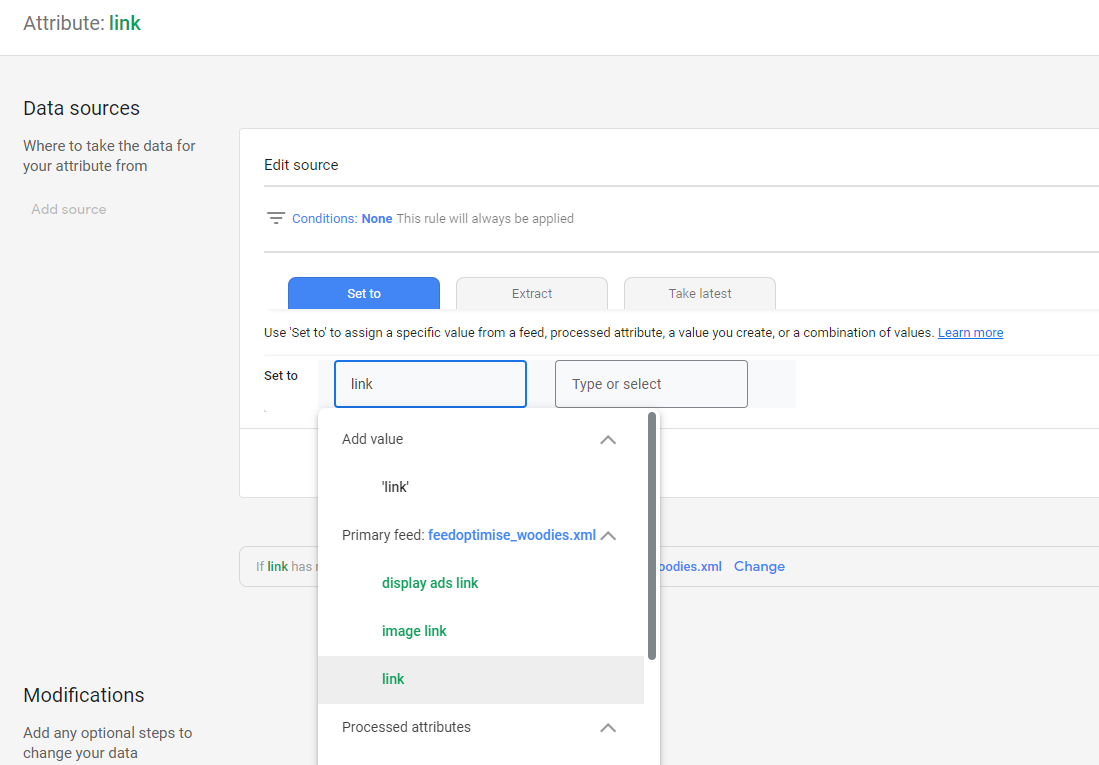
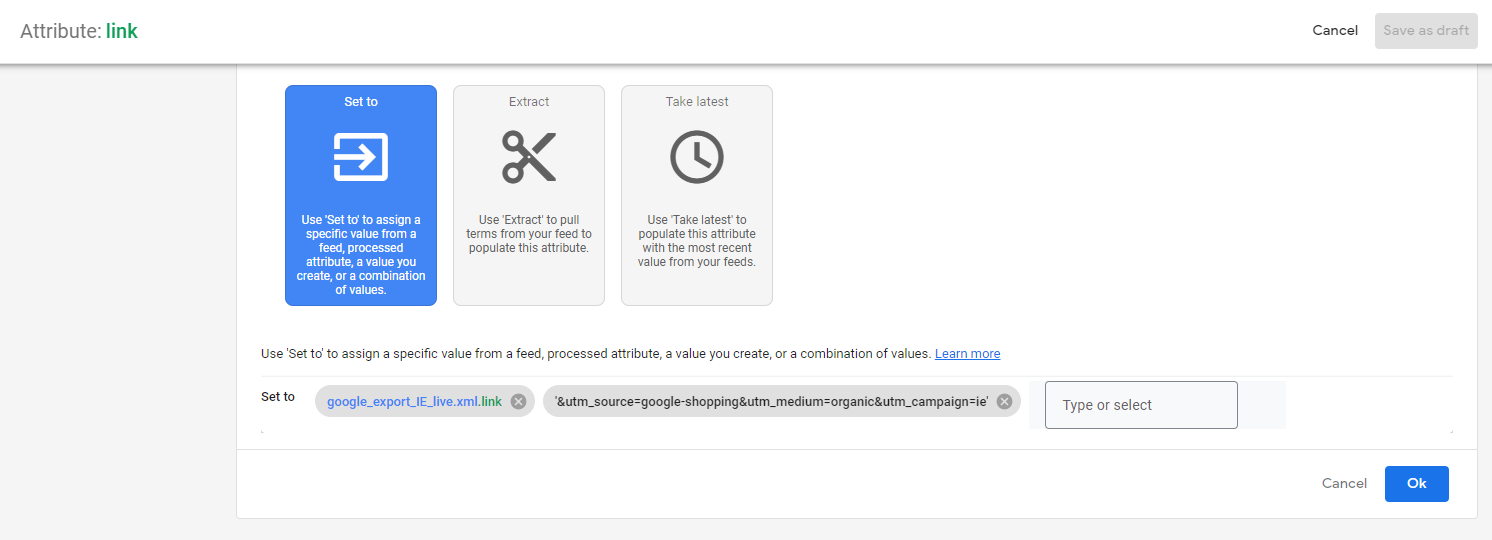
7. This will then open a new page where you need to select the ‘set to’ box. Type in link and select it from the drop down.
8. Then paste in your UTM that you created earlier in the field that says Type or select.
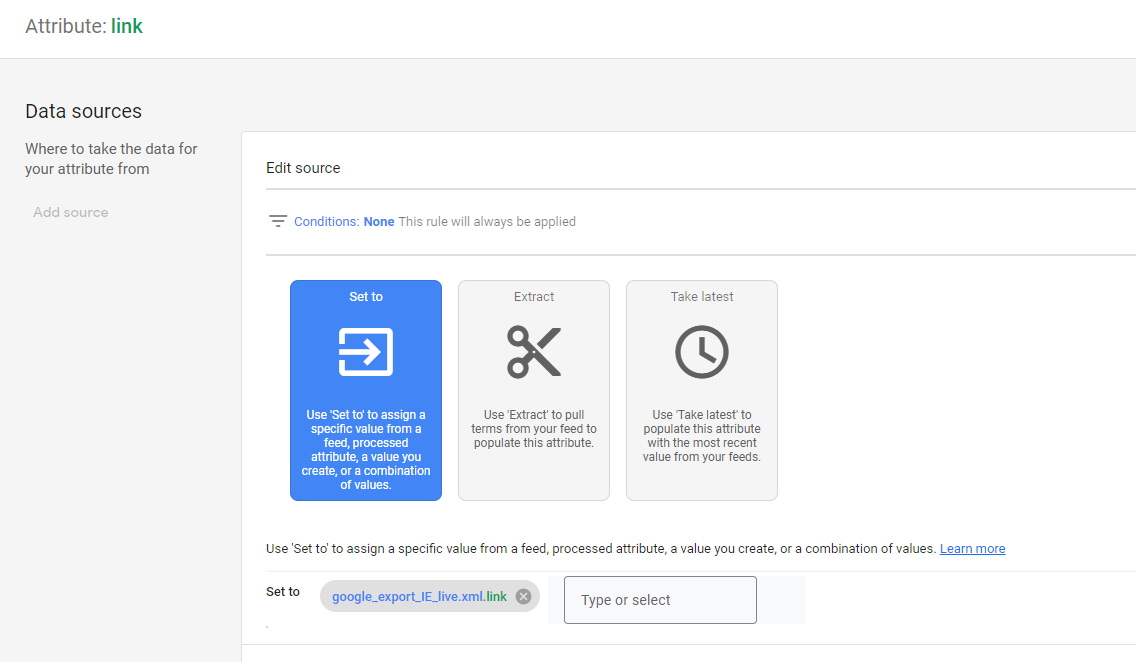
Once you have pasted it, select ok and then save as draft from the top right.
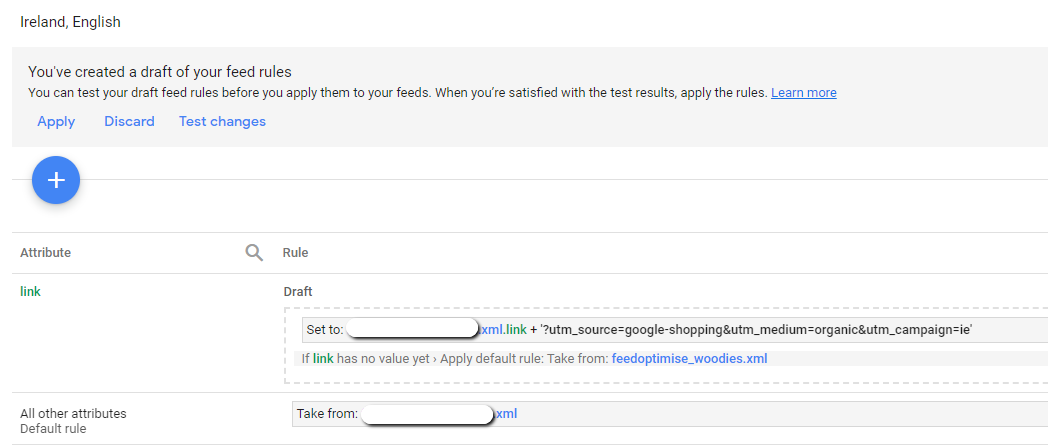
9. Then you can test your changes. Once you are happy with the results, hit apply.
10. You should now be able to see this traffic source within your source/medium report in Google analytics. It is worth checking in on your shopping campaign data after you make the change to ensure the data there is still coming in as expected.
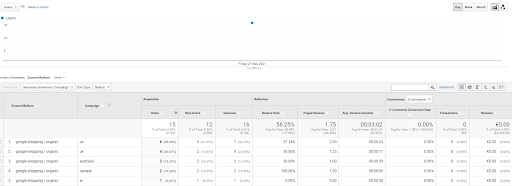
You will now be able to see easily within Google Analytics the number of sessions coming through this traffic source and how they compare to your Google Shopping Campaigns. If you are optmising your feed this should allow you to see what impact it has. For example if clicks went up after you improved product titles and descriptions. It could also help you find potential gaps in your shopping campaigns.


Partner with a 6x Best Global Agency Winner that's as invested in your growth as you are.


